# ClawdBot 祛魅 2 小时安装 + 实际体验 还需再练练
clawdbot 折腾了将近 2 个小时 终于能用了,文档又多又屎
我看中英文互联网上都说装在 mac mini 上,我就用我的 nas 试了一下。
我的使用场景是: clawd bot 安装在 nas 上,使用其他电脑或者 telegram 操控 nas 上的 clawd bot。并且 clawd bot 通过自定义 api 请求 llm (可用公益 api)
# 安装
官方文档:https://docs.clawd.bot/start/getting-started
- Node
>=22
npm install -g clawdbot@latest |
# 初始化
clawdbot onboard |
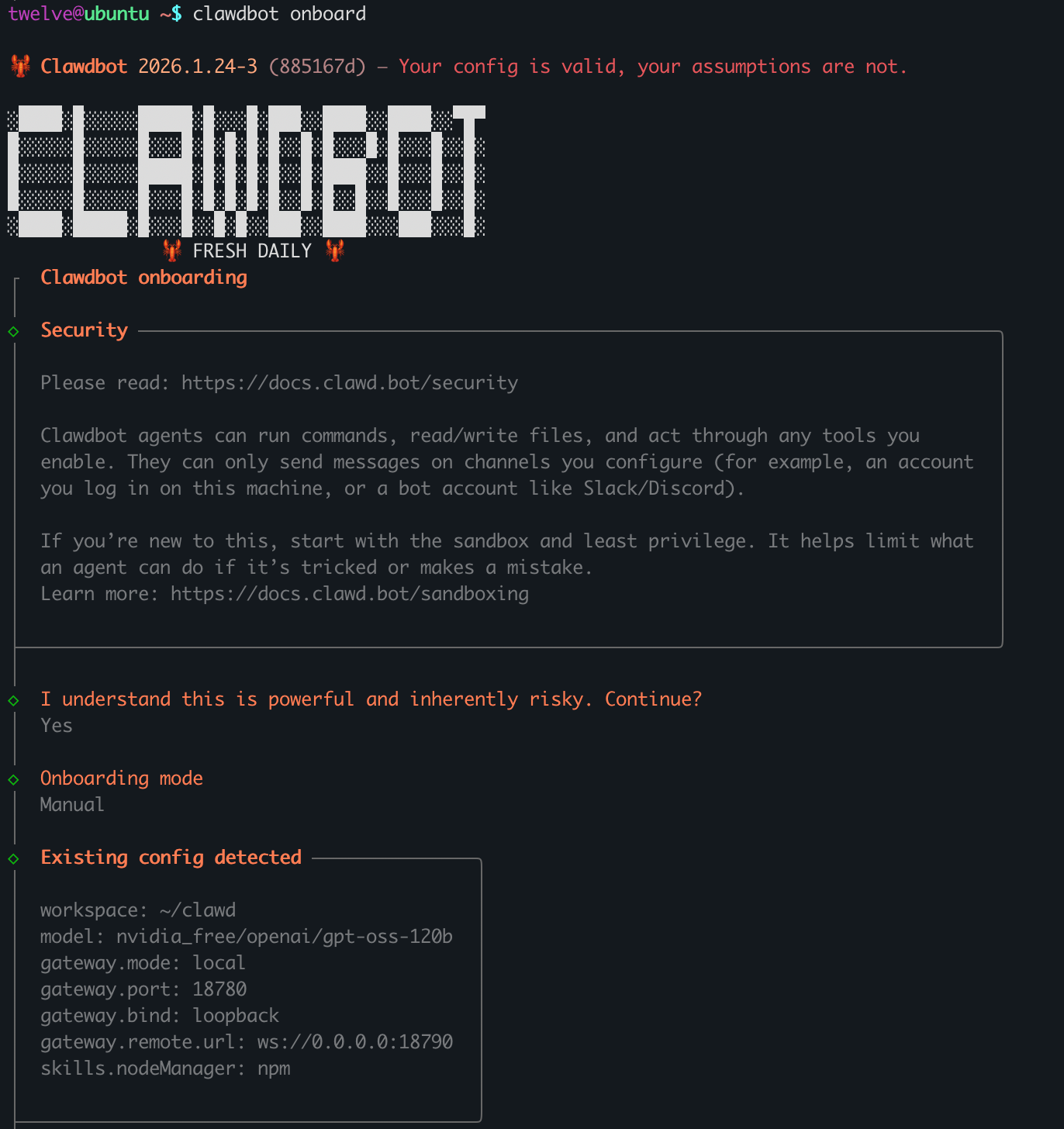
没事,你就随便配置吧,反正最后都得打开配置文件进行修改。
# 配置
目录基本是都是在 ~/.clawdbot/clawdbot.json
我的配置如下,仅供参考
# 模型相关配置
通过 api 请求的话,大概是这么配置
models 是模型配置
部分字段应该就是字面意思,我这个配置抄的 https://docs.clawd.bot/gateway/configuration#models-custom-providers-+-base-urls
agents 是 agent 配置,他这个应该是多 agent 可以操控不同的功能或者是执行不同的任务
{ | |
"models": { | |
"mode": "merge", | |
"providers": { | |
"nvidia_free": { | |
"baseUrl": "https://integrate.api.nvidia.com/v1", | |
"apiKey": "nvapi-xxxx", | |
"api": "openai-completions", | |
"models": [ | |
{ | |
"id": "openai/gpt-oss-120b", | |
"name": "openai/gpt-oss-120b", | |
"reasoning": false, | |
"input": [ | |
"text" | |
], | |
"cost": { | |
"input": 0, | |
"output": 0, | |
"cacheRead": 0, | |
"cacheWrite": 0 | |
}, | |
"contextWindow": 128000, | |
"maxTokens": 32000 | |
} | |
] | |
} | |
} | |
}, | |
"agents": { | |
"defaults": { | |
"model": { | |
"primary": "nvidia_free/openai/gpt-oss-120b" | |
}, | |
"models": { | |
"nvidia_free/openai/gpt-oss-120b": { | |
"alias": "gpt-oss" | |
} | |
}, | |
"workspace": "/home/work/clawd", | |
"compaction": { | |
"mode": "safeguard" | |
}, | |
"maxConcurrent": 4, | |
"subagents": { | |
"maxConcurrent": 8 | |
} | |
} | |
} | |
} |
验证 model 配置
# 查看模型列表 (有这个基本是就说明配置成功了) | |
$ clawdbot models list | |
🦞 Clawdbot 2026.1.24-3 (885167d) — We ship features faster than Apple ships calculator updates. | |
Model Input Ctx Local Auth Tags | |
nvidia_free/openai/gpt-oss-120b text 125k no yes default,configured,alias:gpt-oss |
# 配置默认模型 | |
$ clawdbot models set nvidia_free/openai/gpt-oss-120b | |
🦞 Clawdbot 2026.1.24-3 (885167d) — Shell yeah—I'm here to pinch the toil and leave you the glory. | |
Updated ~/.clawdbot/clawdbot.json | |
Default model: nvidia_free/openai/gpt-oss-120b |
# channel-telegram 配置
telegram 就如同官方文档所属,这块文档还是比较明确的 https://docs.clawd.bot/channels/telegram
主要是拿到 botToken
在大陆正常是请求不到 tg 的 api,需要配置一个 proxy ,虽然文档里说了支持 sock5 , 但是我试了一下还是报错,还是用 http 吧
{ | |
"channels": { | |
"telegram": { | |
"enabled": true, | |
"dmPolicy": "pairing", | |
"botToken": "xxx", | |
"groupPolicy": "allowlist", | |
"streamMode": "partial", | |
"proxy": "http://127.0.0.1:7890" | |
} | |
} | |
} |
验证 channels 配置
# 验证 channels 状态 | |
$clawdbot channels status --probe | |
🦞 Clawdbot 2026.1.24-3 (885167d) — I don't just autocomplete—I auto-commit (emotionally), then ask you to review (logically). | |
│ | |
◇ | |
Gateway not reachable: Error: gateway closed (1006 abnormal closure (no close frame)): no close reason | |
Gateway target: ws://127.0.0.1:18780 | |
Source: local loopback | |
Config: /home/work/.clawdbot/clawdbot.json | |
Bind: loopback | |
Gateway not reachable; showing config-only status. | |
Config: /home/work/.clawdbot/clawdbot.json | |
Mode: local | |
- Telegram default: enabled, configured, mode:polling, token:config | |
Tip: status --deep adds gateway health probes to status output (requires a reachable gateway). |
看到 Telegram default: enabled, configured, mode:polling, token:config 应该就是没问题了。
发条消息看下
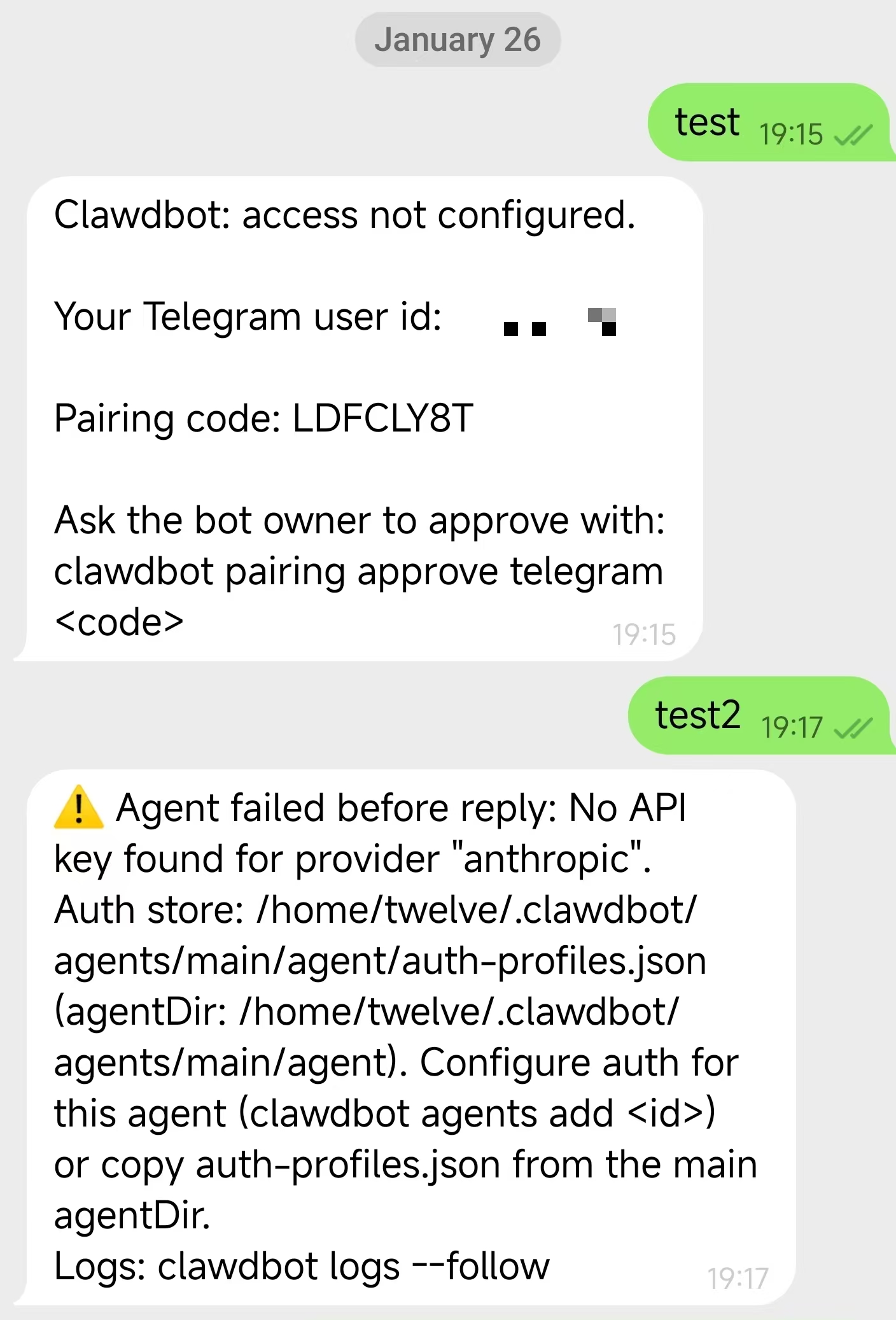
需要加个白名单
# 查看等待白名单 | |
$clawdbot pairing list telegram | |
🦞 Clawdbot 2026.1.24-3 (885167d) — I'm not saying your workflow is chaotic... I'm just bringing a linter and a helmet. | |
Pairing requests (1) | |
┌──────────┬────────────────────────────────────────────────────────┬──────────────────────────────────────────────────────────────────────────────────────────────────────────────┬──────────────────────────┐ | |
│ Code │ userId │ Meta │ Requested │ | |
├──────────┼────────────────────────────────────────────────────────┼──────────────────────────────────────────────────────────────────────────────────────────────────────────────┼──────────────────────────┤ | |
│ xxxx │ xxxx │ {"username":"xxxx","firstName":"xxxx","lastName":"xxxx"} │ 2026-01-26T11:15:46.314Z │ | |
└──────────┴────────────────────────────────────────────────────────┴──────────────────────────────────────────────────────────────────────────────────────────────────────────────┴──────────────────────────┘ |
# 添加白名单 | |
$ clawdbot pairing approve telegram xxxx | |
🦞 Clawdbot 2026.1.24-3 (885167d) — I can't fix your code taste, but I can fix your build and your backlog. | |
Approved telegram sender xxxx. |
# gateway
gatewary 的文档是一坨中的一坨。
官方文档: https://docs.clawd.bot/gateway/configuration
gateway 有几种不同的 mode。
mode=remote 是当前机器直接使用远程的服务,你需要有另外一个 clawdbot 服务,并且连接到那个 clawdbot 才能使用。
mode=local 是当前机器就能直接用。
很操蛋的是,我一直以为 mode=remote 是我开一个服务,我在另外一台电脑上就能用。我是笨比。这个问题我折腾了好久。
bind 也有几种不同的 mode 。
bind=lan 可通过任何接口到达,包括 LAN/Wi-Fi 和 Tailscale
bind=tailnet 绑定到 Tailscale IP
bind=loopback 绑定到 127.0.0.1。只有本地,局域网也访问不了.
bind=auto 如果有 tailnet IP 则使用 tailnet IP, 否则是 lan
{ | |
"gateway": { | |
"port": 18780, | |
"mode": "local", | |
"bind": "loopback", | |
"controlUi": { | |
"enabled": true | |
}, | |
"auth": { | |
"mode": "token", | |
"token": "xxxxxx" | |
}, | |
"tailscale": { | |
"mode": "off", | |
"resetOnExit": false | |
}, | |
"remote": { | |
"url": "ws://0.0.0.0:18790", | |
"token": "xxxxxx" | |
} | |
} | |
} |
如果你的 clawbot 装在了 nas 上,你想要在其他地方访问 dashboard 可以这么操作
官方文档:https://docs.clawd.bot/help/faq#how-do-i-authenticate-the-dashboard-token-on-localhost-vs-remote
使用 Tailscale Serve (推荐): bind=loopback,运行 clawdbot gateway --tailscale serve 开 https://<magicdns>/ 。如果 gateway.auth.allowTailscale 为 true,则 identity headers 满足 auth(无令牌)
使用 Tailnet bind: 运行 clawdbot gateway --bind tailnet --token "<token>" ,打开 http://<tailscale-ip>:18789/,在仪表板设置中粘贴 token。
SSH 隧道 (作者本人使用) : 在没有安装 clawdbot 的机器上执行 ssh -N -L 18782:127.0.0.1:18782 -L 18780:127.0.0.1:18780 user@ip (ssh 端口转发) 。
ssh 端口转发 可以参考 idcflare 的文章 https://idcflare.com/t/topic/37469 写的不错
# 获取 clawdbot 面板端口号 | |
$clawdbot dashboard | |
🦞 Clawdbot 2026.1.24-3 (885167d) — I'll butter your workflow like a lobster roll: messy, delicious, effective. | |
Dashboard URL: http://127.0.0.1:18780/?token=xxxx | |
Copy to clipboard unavailable. | |
No GUI detected. Open from your computer: | |
ssh -N -L 18780:127.0.0.1:18780 twelve@192.168.102.110 | |
Then open: | |
http://localhost:18780/ | |
http://localhost:18780/?token=xxxxx | |
Docs: | |
https://docs.clawd.bot/gateway/remote | |
https://docs.clawd.bot/web/control-ui |
比如 此时端口为 18780 ,那就转发 18780 端口就行 ssh -N -L 18780:127.0.0.1:18780 user@ip
验证 gateway 配置
- 需要 gateway 成功执行
# 运行 gateway | |
$clawdbot gateway | |
🦞 Clawdbot 2026.1.24-3 (885167d) — I'm basically a Swiss Army knife, but with more opinions and fewer sharp edges. | |
16:48:08 [canvas] host mounted at http://127.0.0.1:18780/__clawdbot__/canvas/ (root /home/twelve/clawd/canvas) | |
16:48:08 [heartbeat] started | |
16:48:08 [gateway] agent model: nvidia_free/openai/gpt-oss-120b | |
16:48:08 [gateway] listening on ws://127.0.0.1:18780 (PID 156307) | |
16:48:08 [gateway] listening on ws://[::1]:18780 | |
16:48:08 [gateway] log file: /tmp/clawdbot/clawdbot-2026-01-26.log | |
16:48:08 [browser/server] Browser control listening on http://127.0.0.1:18782/ | |
16:48:10 [telegram] [default] starting provider (@telegramBotXXXX) |
- 需要打开 clawdbot 面板
# 获取 clawdbot 面板端口号 | |
$clawdbot dashboard | |
🦞 Clawdbot 2026.1.24-3 (885167d) — I'll butter your workflow like a lobster roll: messy, delicious, effective. | |
Dashboard URL: http://127.0.0.1:18780/?token=xxxx | |
Copy to clipboard unavailable. | |
No GUI detected. Open from your computer: | |
ssh -N -L 18780:127.0.0.1:18780 twelve@192.168.102.110 | |
Then open: | |
http://localhost:18780/ | |
http://localhost:18780/?token=xxxxx | |
Docs: | |
https://docs.clawd.bot/gateway/remote | |
https://docs.clawd.bot/web/control-ui |
如果页面能打得开,基本上没啥问题。
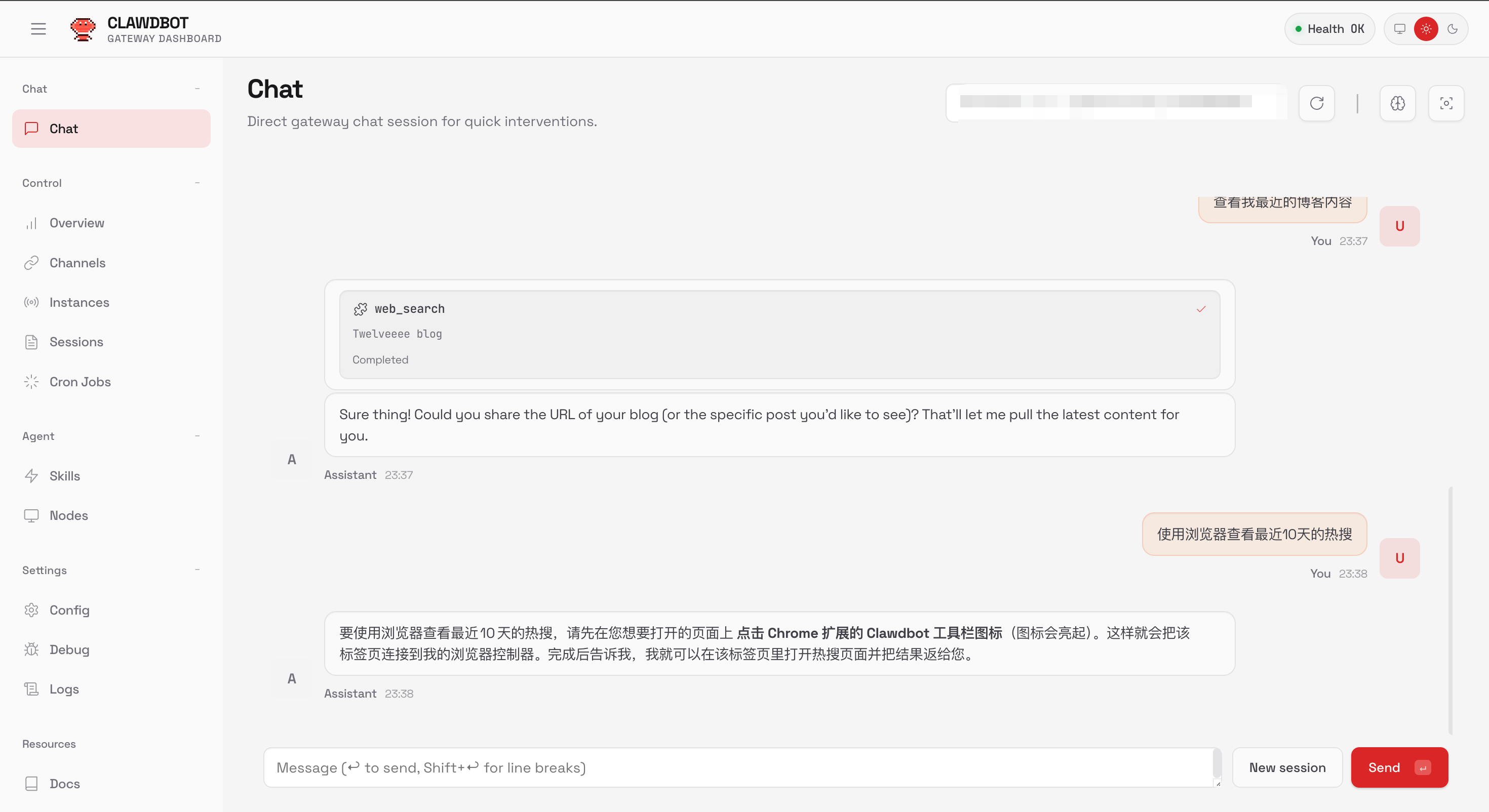
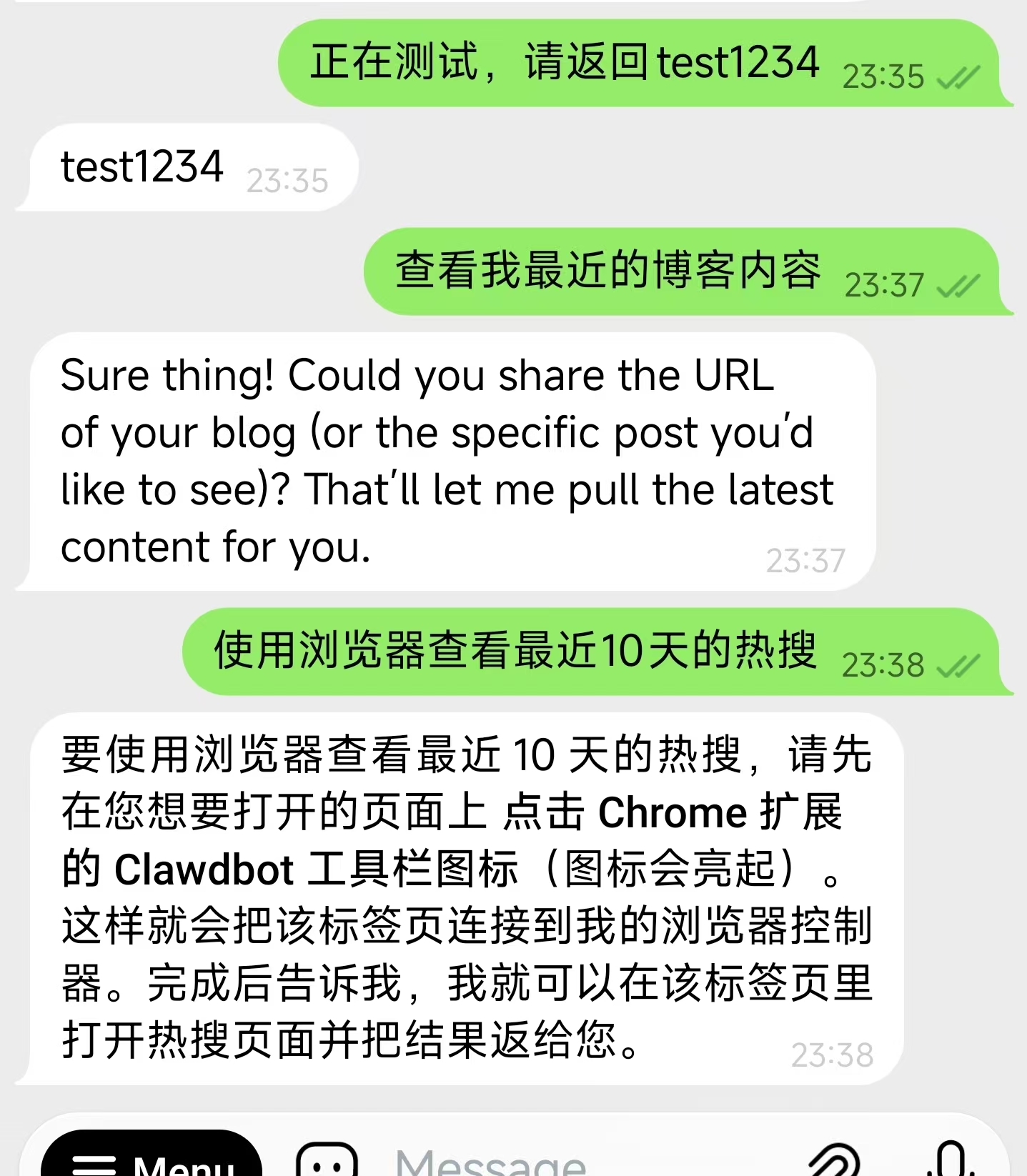
基本是就能用了
# 效果
实际体验下来,个人认为,理念很先进,效果上还有提升和优化的空间。不建议现在就去使用,可以体验。现在还是需要懂相对较多的计算机知识才能玩通。可能会有人说我模型没用 oups 4.5,无所谓了,我又没打算让他做什么事情,简单试用一下。
至于中文互联网上说的,有多 nb 有多厉害,我怀疑他们都没部署过,都不知道上哪里抄的,或者是 ai 生成的充满幻觉的文章。可能 clawdbot 真的有用吧,我感觉 emmm 再练练吧。
至于隐私和安全问题,我看到甚至有 1password 的 skill,
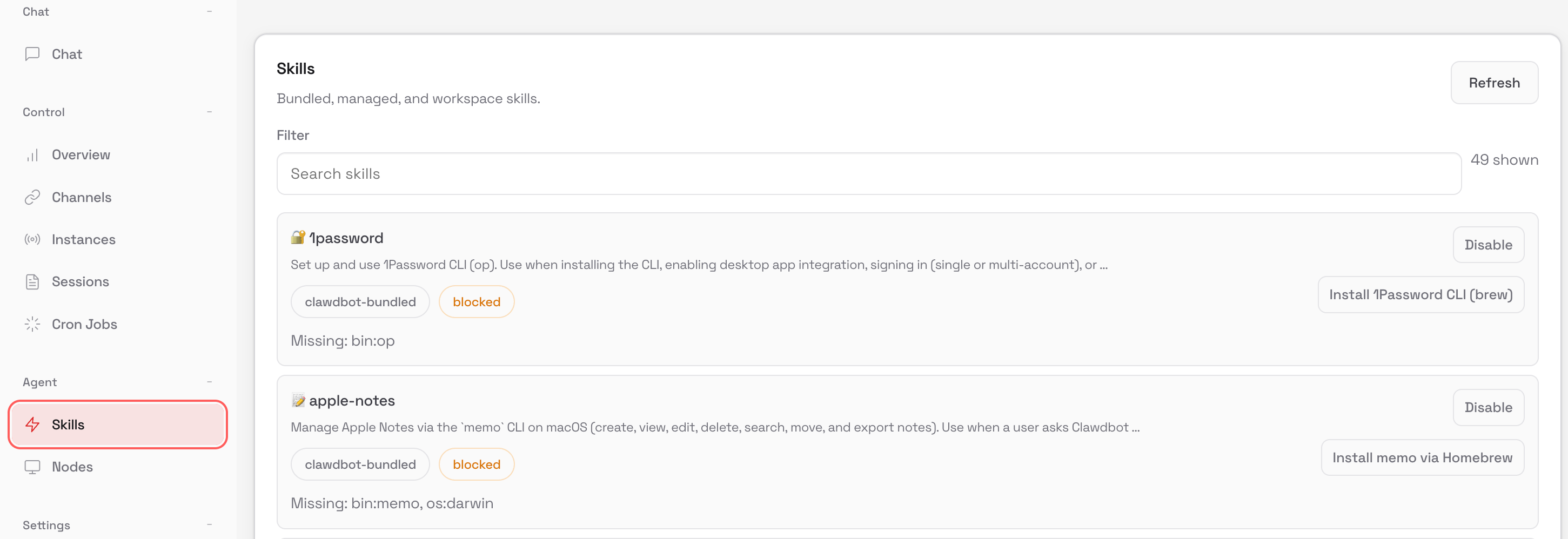
wtf,谁敢把 1password 直接共享出去啊???
